Adding Images
Images help make pages more engaging and provide visual context for your content. Use high-quality images that support the information on the page and are appropriately sized and optimized for the web.
Before uploading, make sure your image meets the recommended dimensions and includes descriptive alternative text. See Optimizing Images for the Web for additional guidance.
Image Options
Images can be added through the Text Editor or through several components in Drupal. Choose the option that best supports your content and page layout.
Image embedded in Text Editor

Add images directly within the body of your text, either on their own or alongside a paragraph.
- Place your cursor where you want the image to appear in the Text Editor.
- Select the media button from the toolbar.
- Choose an existing image from the Media Library or upload a new one.
- Select the appropriate alignment and insert the image.
Center larger images displayed on their own, or use left or right alignment for images that accompany text.
Card/Card Group
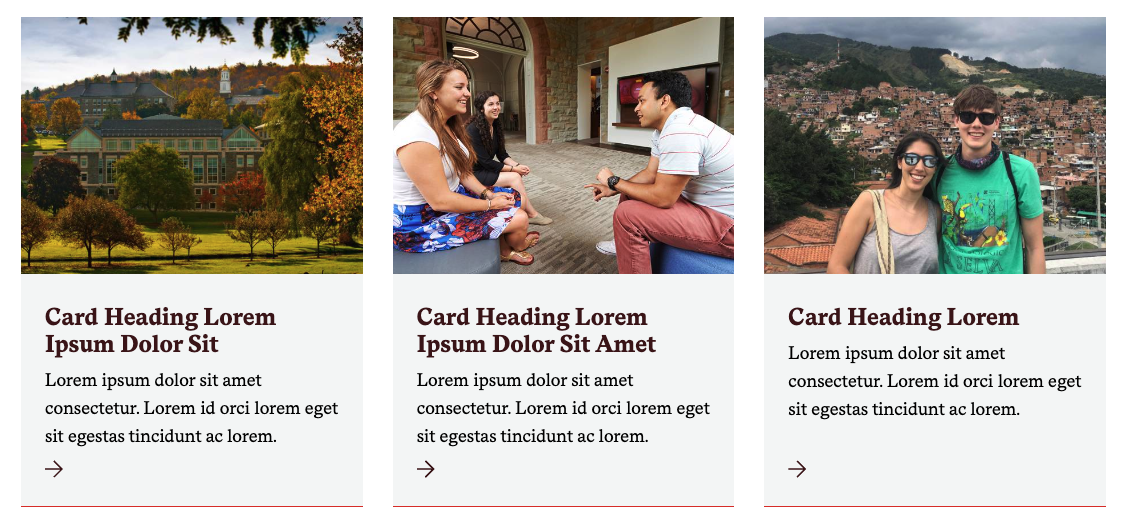
Cards combine images, titles, supporting text, and links to highlight related content or resources. Card Groups display multiple cards together in a consistent layout.
- Add a Card or Card Group component.
- Select an image from the Media Library or upload a new one.
- Enter a title, supporting text, and link.
- For Card Groups, add additional cards as needed.
Use consistent image dimensions across cards in the same group.
Recommended Image Size: 900 × 675 px
Image with Caption

The Image with Caption component displays a large, full-width image with an optional caption for additional context.
- Add an Image with Caption component.
- Select an image from the Media Library or upload a new one.
- Enter a caption, if needed.
Keep captions concise and avoid repeating information already provided in the alternative text.
Slideshow [Featured Image Carousel]
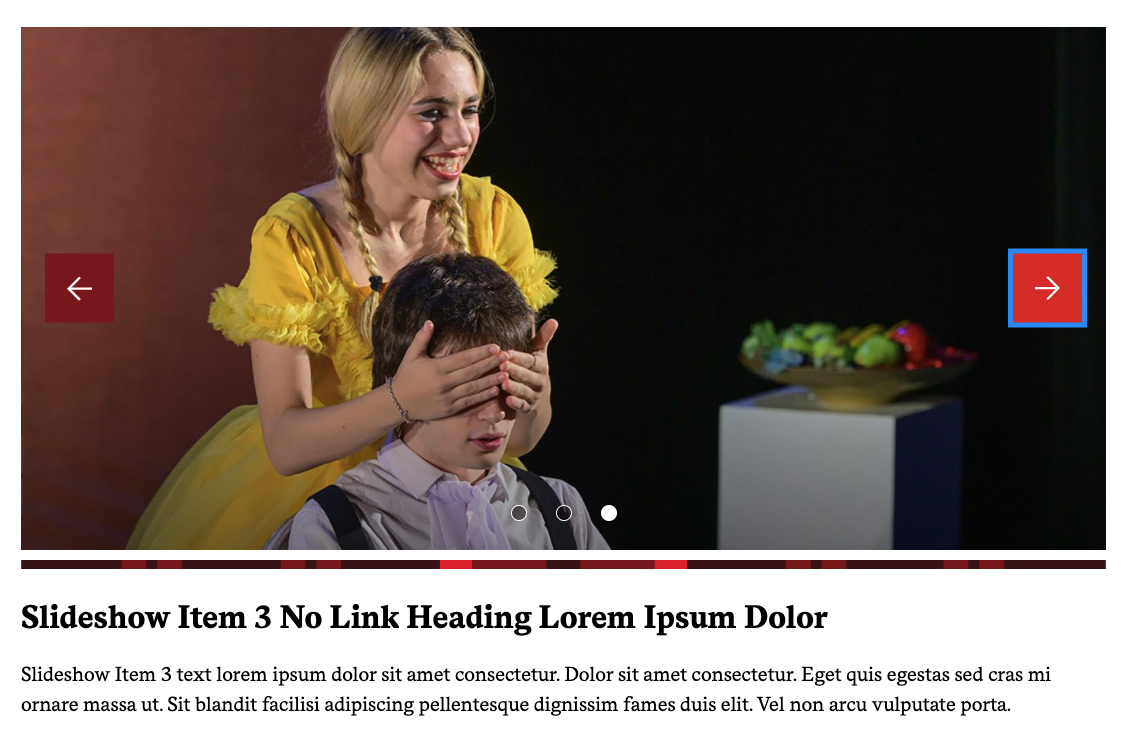
Slideshows display a collection of related images with optional titles, supporting text, and links.
- Add a Slideshow component.
- Select an image for the first slide.
- Enter a title, supporting text, and link as needed.
- Add additional slideshow items and arrange them in the desired order.
Recommended Image Size: 2000 × 964 px
Full Width Carousel
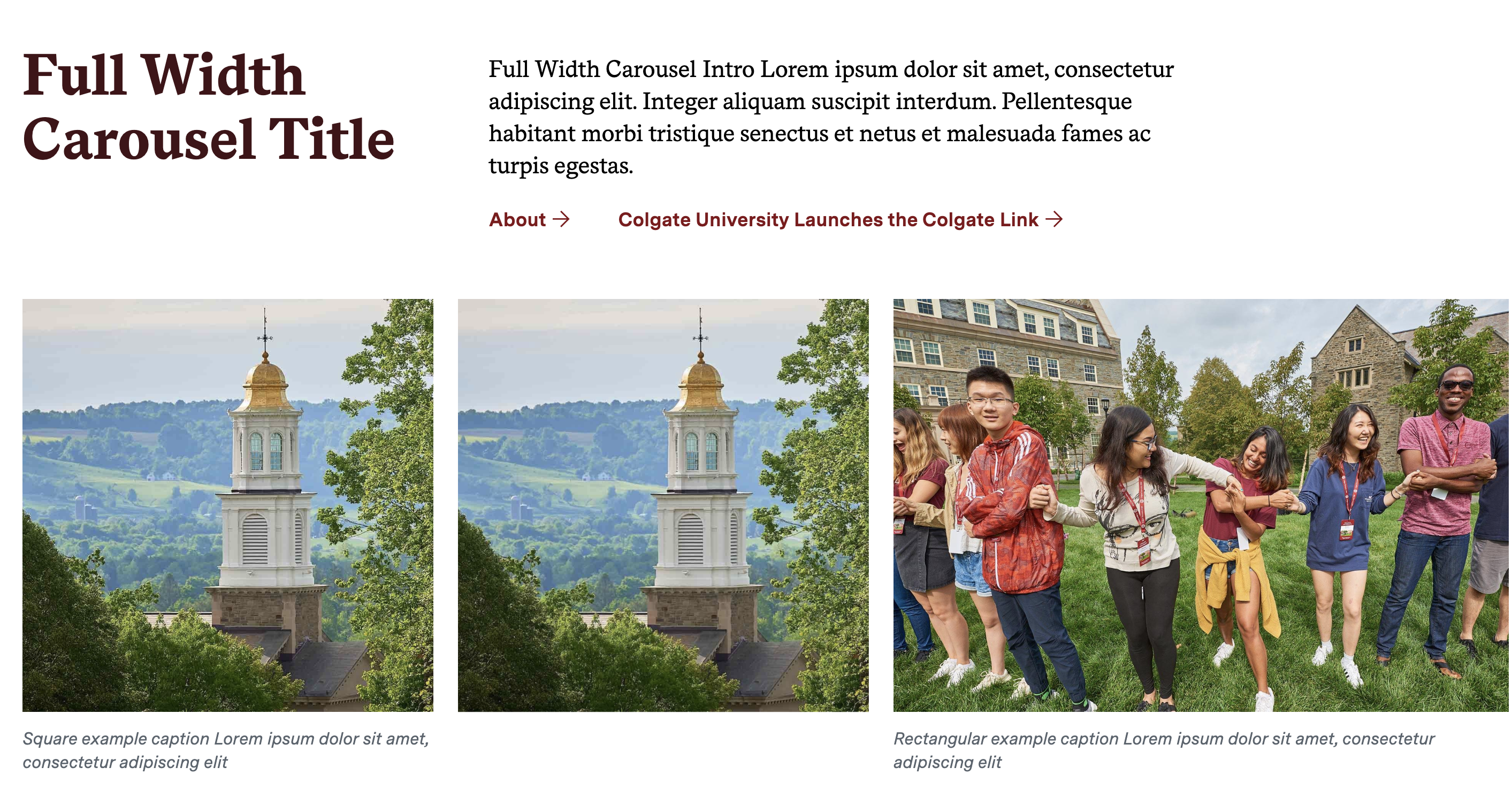
Displays multiple images in a large, horizontally scrolling layout. Each image can be assigned a square, landscape, or portrait orientation, allowing different image sizes to appear together.
Recommended image sizes:
- Square: 579 × 579 px
- Rectangle (Landscape): 1029 × 579 px
- Vertical (Portrait): 326 × 579 px
Images are automatically cropped based on the selected orientation, using the center of the image as the focal point.
Spotlight
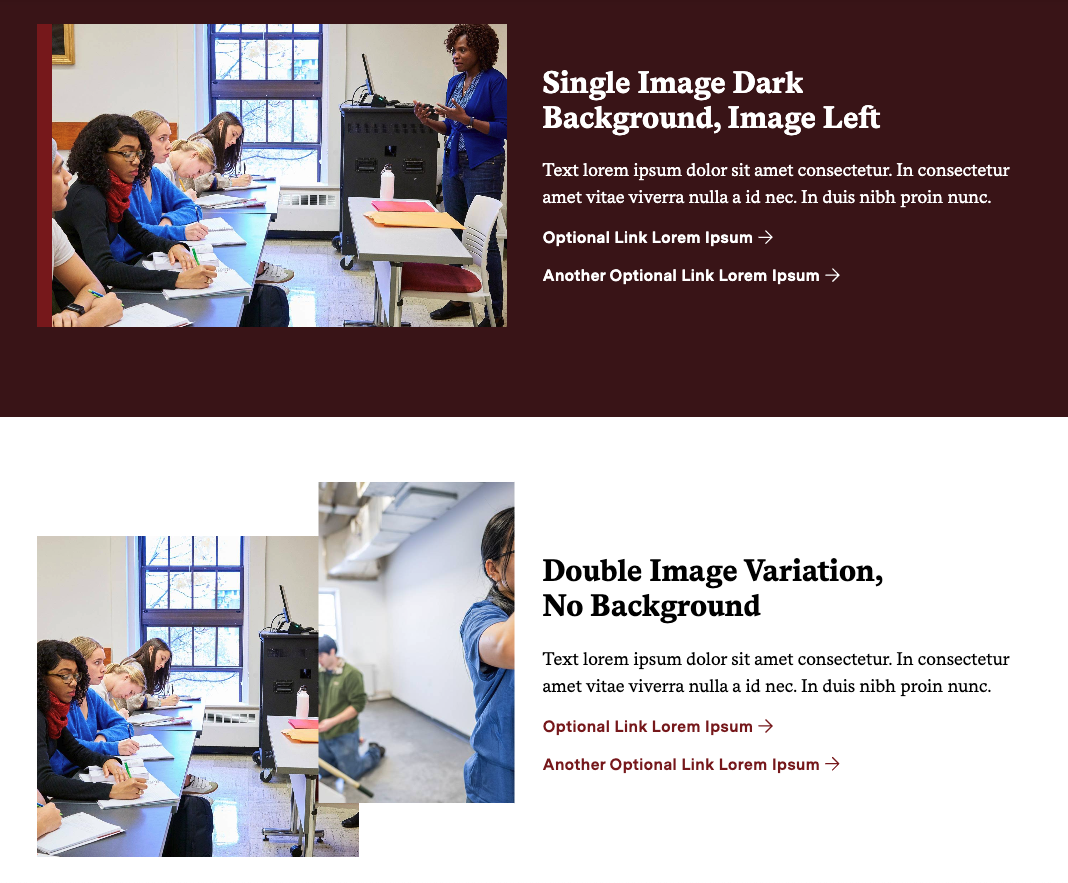
Spotlights highlight featured content using a prominent image or video alongside a title, supporting text, and links.
Two styles are available:
- Default: Displays one or two images alongside text in a 50/50 layout.
- Video: Displays a video alongside text in a 50/50 layout.
Additional options allow you to reverse the layout, placing the image or video on the right, or add a maroon background.
Recommended image sizes:
- Default — One Image: 1150 × 742 px
- Default — Two Images:
- First Image (Square): 695 × 659 px
- Second Image (Vertical): 424 × 659 px
- Video: 1280 × 720 px (minimum 1150 × 645 px)
For two-image Spotlights, add the square image first and the vertical image second. Images are automatically cropped to fit their respective layouts.
Image Sizes
Prepare images at the recommended dimensions before uploading. The dimensions listed above are width × height in pixels.
For other common images:
- Basic Page Hero: 2100 × 1181 px recommended (minimum 1920 × 1080 px).
- Side-by-Side Hero: 1920 × 1080 px.
- Blockquote — Default: Square image, minimum 1200 × 1200 px.
- Blockquote — Background Image: 2100 × 1181 px.
- Profile Image: Square image, minimum 1200 px wide.
Keep file sizes under 1 MB whenever possible to improve page performance. Use JPG or WebP for photographs and crop or resize images before uploading. Individual image fields may have different upload limits.
For help preparing images, see Optimizing Images for the Web.