
Customer Account Overview
An Account, also known as a Customer Account, is the entity that owns the project and can be considered your customer. An Account can be a Person or a Business.
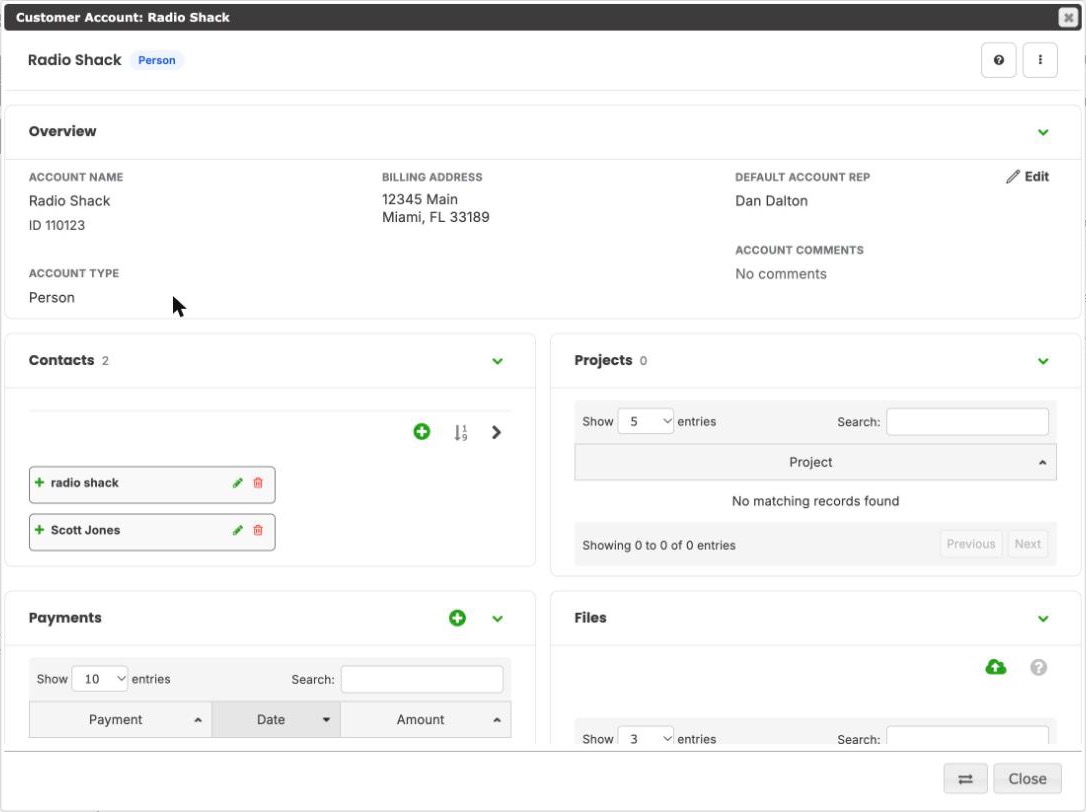
The header bar
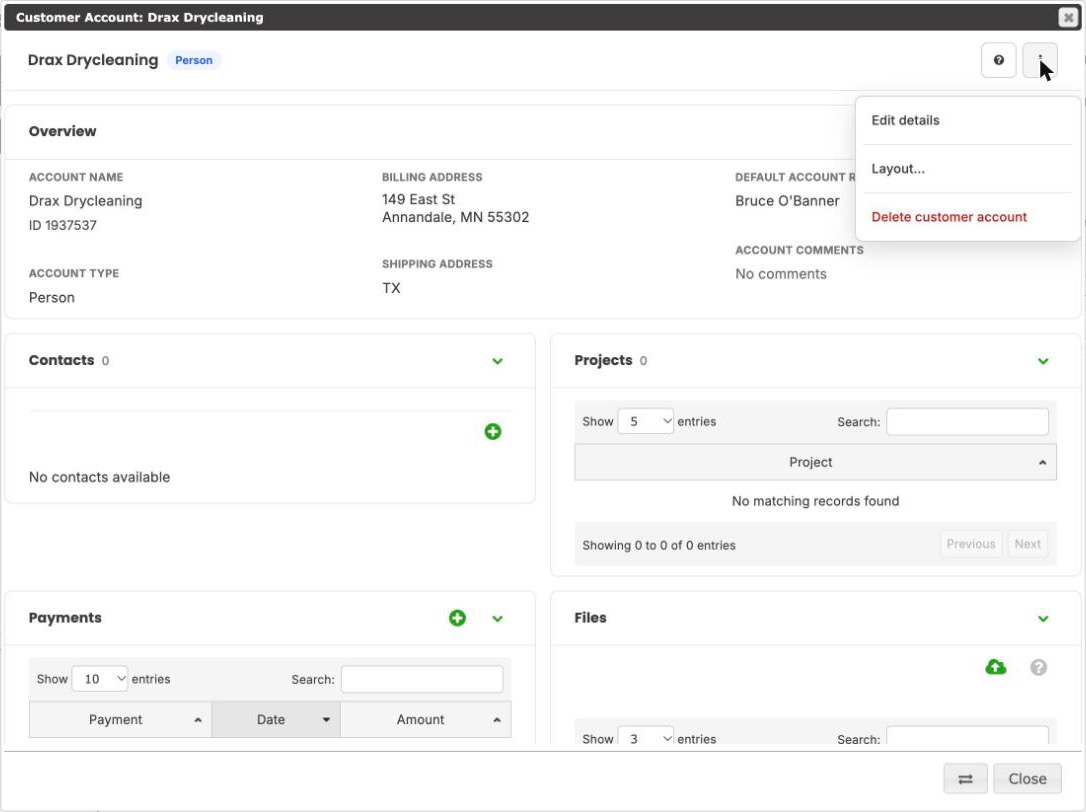
The title reads Customer Account: name. Below it, the bar shows a tag for Person or Business and, when one is set, the merge designation (Merge: KEEP or Merge: DELETE). Customer Accounts are informational, so there is no status or progress path. The ? icon opens this help. The ⋯ menu holds Edit details, Layout… (density, which sections to show, and Reset layout) and, when the account can be deleted, Delete customer account.
Every section except the Overview can be collapsed or hidden, and the layout you choose is remembered in your browser.
Overview
The Overview is always shown at the top and summarizes the account:
- Account Name, with the account's ID underneath, and Account Type (Person or Business)
- Billing Address: where Invoices are sent. This may or may not be the project's site address.
- Shipping Address, only when one is entered
- Default Account Rep: the User who owns the account, so staff know who has worked with this customer
- Account Comments: notes about the account, not about a specific job
- Merge Designation, when it is set to KEEP or DELETE
Click Edit on the Overview, or Edit details in the ⋯ menu, to change these fields. Account Name and the full Billing Address (street, city, state and zip) are required. The Merge Designation is set in the Utilities section, not on this form.
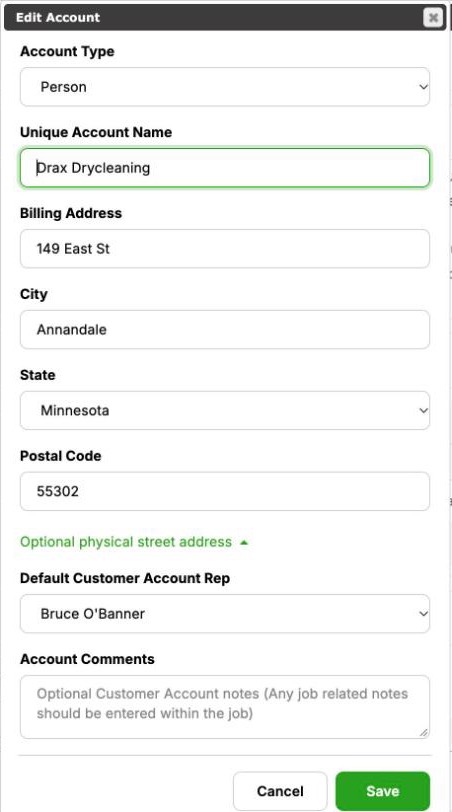
NOTE: These are Customer Account addresses, not necessarily job addresses. If the site address is different, edit the Site Address in the Project Details. If the two addresses are the same and you change the billing address here, you will also need to update the Site Address in the project.
Contacts
The people who belong to the account. An account can have many Contacts. Use + to search for an existing Contact or create a new one, and the handle to reorder them.
Projects
The Projects the account owns. Reports give a deeper account and project analysis.
Payments
Shown when you can see financials. It lists the Payments the account has made, with a count in the header, and shows any unapplied credit in red. Customer Accounts own Payments. Use + to create a payment.
QuickBooks
Shown only when your company is connected to QuickBooks and you are a QuickBooks admin. It lists the QuickBooks References that link this account to its QuickBooks customer (Online or Desktop), with the QuickBooks ID and the last sync date and time. Use + to add a reference. Each reference's menu offers View log and, for a company with QuickBooks enabled, Sync and Delete Reference. The section's own menu has Refresh references.
Payment Processing
Shown only when you can see financials and your company has a connected payment provider. It lists the card and ACH transactions run for this account through the provider: the transaction type and status, date, amount and what it was applied to, plus the provider reference and the amount actually charged when a surcharge applied. A View payment link opens the Contractors Cloud payment a transaction recorded. The ⋯ menu inside the section holds Down Payments, Create Payment Link, Take a Payment and View Payment Log; each checks your permissions when opened.
Files
Files for the account itself, not project files or photos.
Log/Notes
Notes about the account, plus entries the system records, such as a merge designation change. Use + to add a note. Opening a note shows who wrote it and when, with Prev and Next to step through the others.
Utilities
Where accounts are merged. Set the Merge Designation to KEEP or DELETE and click Save, then finish the merge on the Data Merge page under API Data Integrations (available to users with access to the API pages).
To delete an account, use ⋯ → Delete customer account. That option appears only when the account has no Projects or Payments. A user who can view only their own records must also be the account rep. When the account cannot be deleted, the Utilities section says why.
Customer Portal → now the Project Portal
Portal access is no longer managed on the Customer Account. You grant access per project under Utilities → Project Portal. See the Project Portal Overview article for how customers sign in, what they can see, and setup under Company Settings → Portals.