
Manufacturer Overview
A Manufacturer (also called a "make") is the brand that makes a material, such as GAF, Owens Corning or CertainTeed. Every material in your catalog can be assigned a Manufacturer, which is how products are grouped and identified by brand. A Manufacturer is not the same as a Supplier (the company you buy from): you might buy the same manufacturer's products from several suppliers.
Why it matters: assigning materials to a manufacturer keeps your catalog organized by brand and makes it easy to see everything you carry from a given maker.
Getting started
- From the Manufacturers list, click the + at the top of the list, or open the ⋯ menu and choose Add manufacturer. Enter a Company name, then Save. The new manufacturer opens so you can keep going. As you type the name, the field may suggest companies other contractors use. A Shortened display name is handy for tight columns.
- Assign materials to the manufacturer from the Materials catalog.
Opening a Manufacturer
- Click a manufacturer in the Manufacturers list (Contacts in the main menu, then Manufacturers). You need the permission "Can view manufacturers" to see the list.
- Click the manufacturer's name in a material's details.
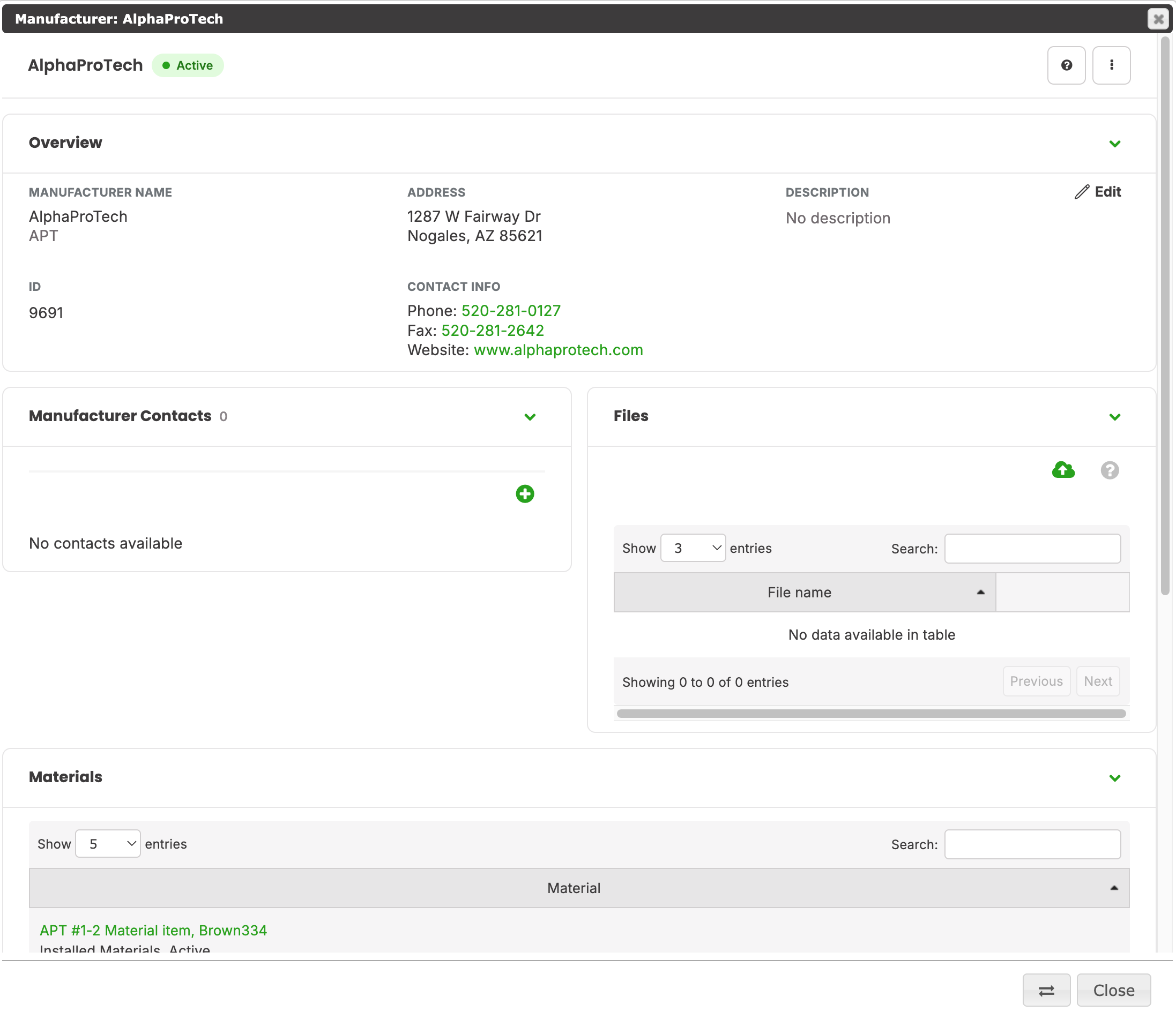
The manufacturer opens in a window over the page. Use the ⇄ button at the bottom to switch it to full width, and Close (or the X) to close it.
The header bar
The bar at the top shows the manufacturer's name, then a status pill: Active (green) or Inactive (grey). The ? opens the help for this dialog, and the ⋯ opens the more menu.
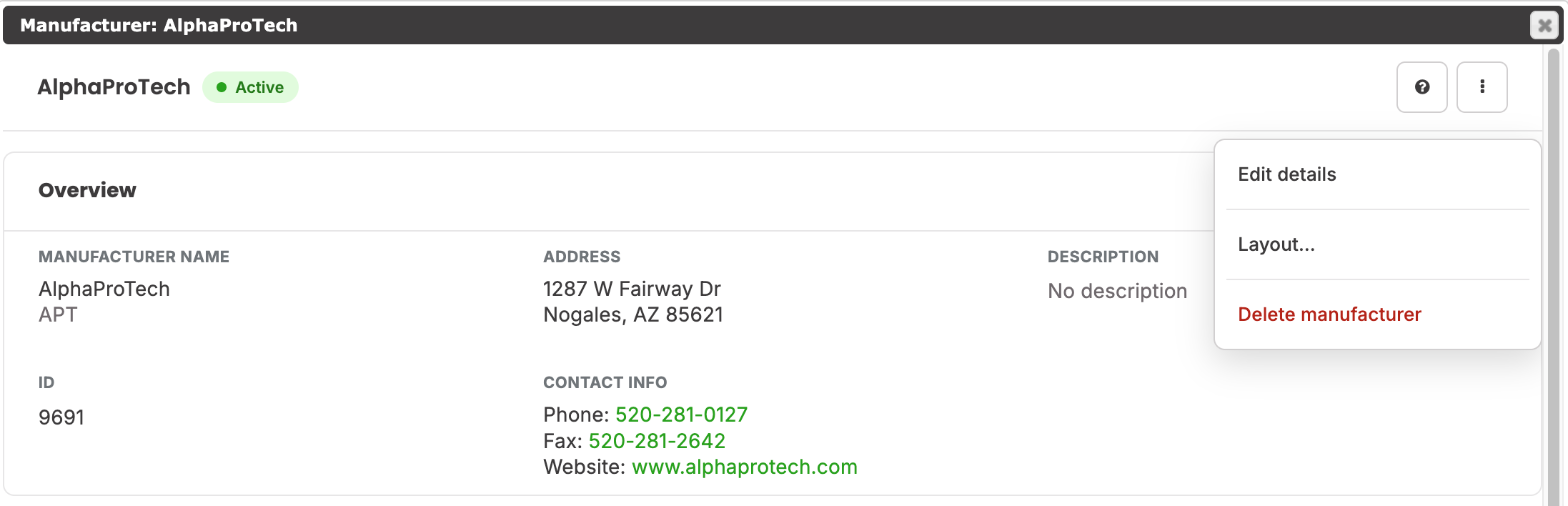
The ⋯ menu
- Edit details opens the Edit details form. It is not offered if the permission "Can create and edit manufacturers" is turned off for you.
- Layout… opens the Layout panel: choose the Density (Comfortable or Compact), tick which cards to show under Sections (the Overview is always shown), or use Expand all and Collapse all. Reset layout puts everything back. Your choices are remembered.
- Delete manufacturer is offered only if "Can create and edit manufacturers" is on for you. It is the last item, in red.
A manufacturer that is used by any material cannot be deleted. Choosing Delete makes it Inactive instead, and you are told so. A manufacturer that is not in use is deleted permanently. The same permission is checked when the delete is processed, not just when the menu item is shown.
Overview
The Overview card is always at the top. It shows:
- The Manufacturer Name. Under the name, in grey, is the shortened display name, when there is one. Below it is the manufacturer's ID.
- Address.
- Contact info, one line each: phone, fax and website. Long values are cut off with an ellipsis (hover to see the whole value). The website shows only its host name and opens in a new tab; only web addresses (http or https) become links.
- Description.
Click Edit in the upper right of the card to open Edit details. The button is not shown if "Can create and edit manufacturers" is turned off for you.
Edit details
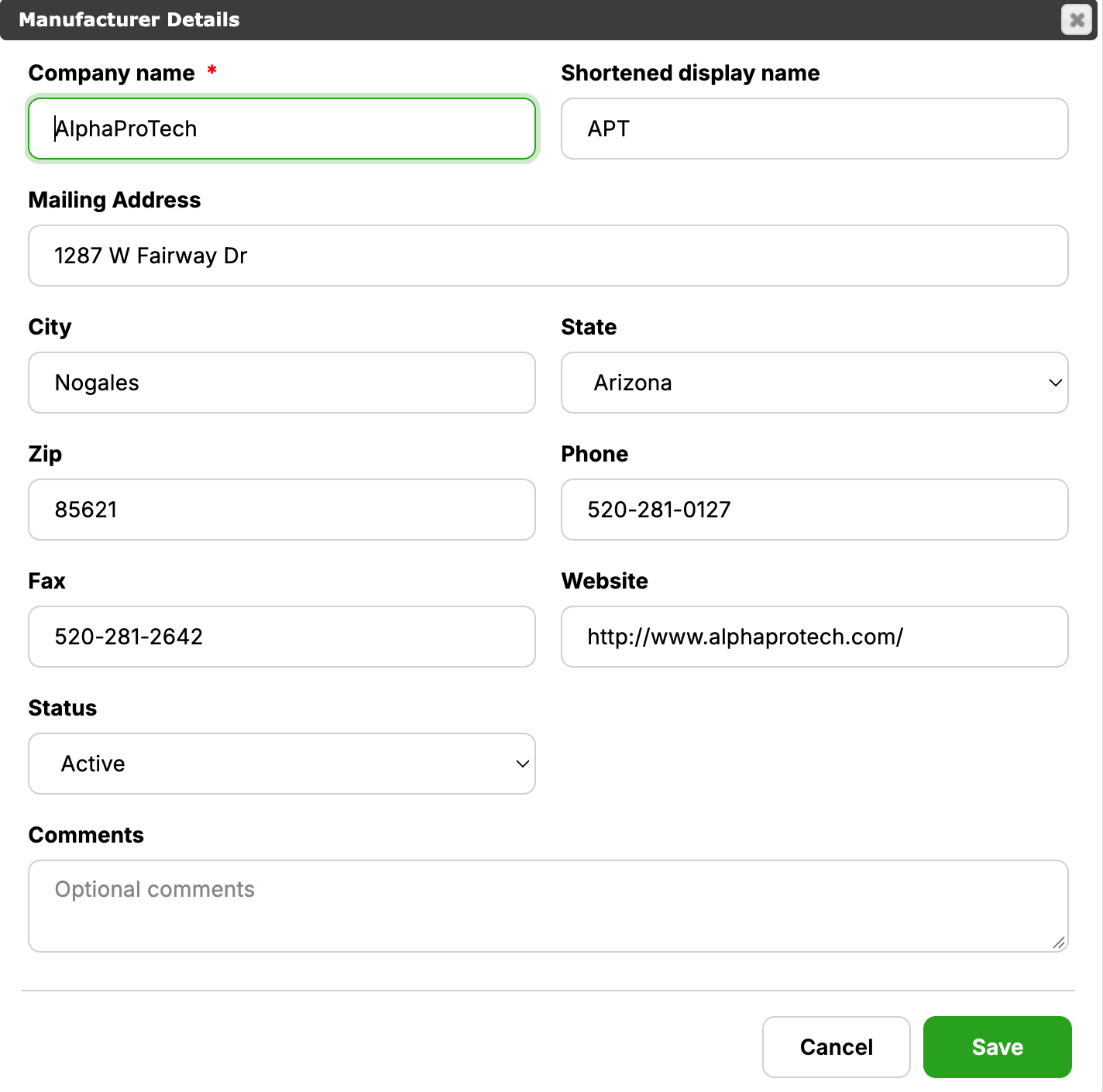
The form has two columns on a wide screen and one on a narrow one. Cancel and Save stay at the bottom while the fields scroll. If "Can create and edit manufacturers" is off for you the fields are locked and the button reads Close, with no Save. The same permission is checked when the save is processed.
- Company name (required)
- Shortened display name
- Mailing Address, City, State and Zip
- Phone, Fax and Website
- Status: Active or Inactive.
- Comments: shown as the Description on the Overview.
The cards
Below the Overview the cards sit two to a row on a wide screen. Click a card's title to open or close it.
Manufacturer Contacts
The people at the manufacturer. Use the + to add one.
Files
Files specific to the manufacturer.
Materials
A read-only list of the materials assigned to this manufacturer, with each material's type and status. Click a material to open it.
Log/Notes
Notes related to the manufacturer. All changes are documented here.
See also the Supplier overview for the companies you buy from.