Electronic Templates
To configure Electronic Templates, first navigate to Settings (left-hand menu) > Communications.
Here you will see Paper Templates and Electronic Templates. Select Electronic Templates.
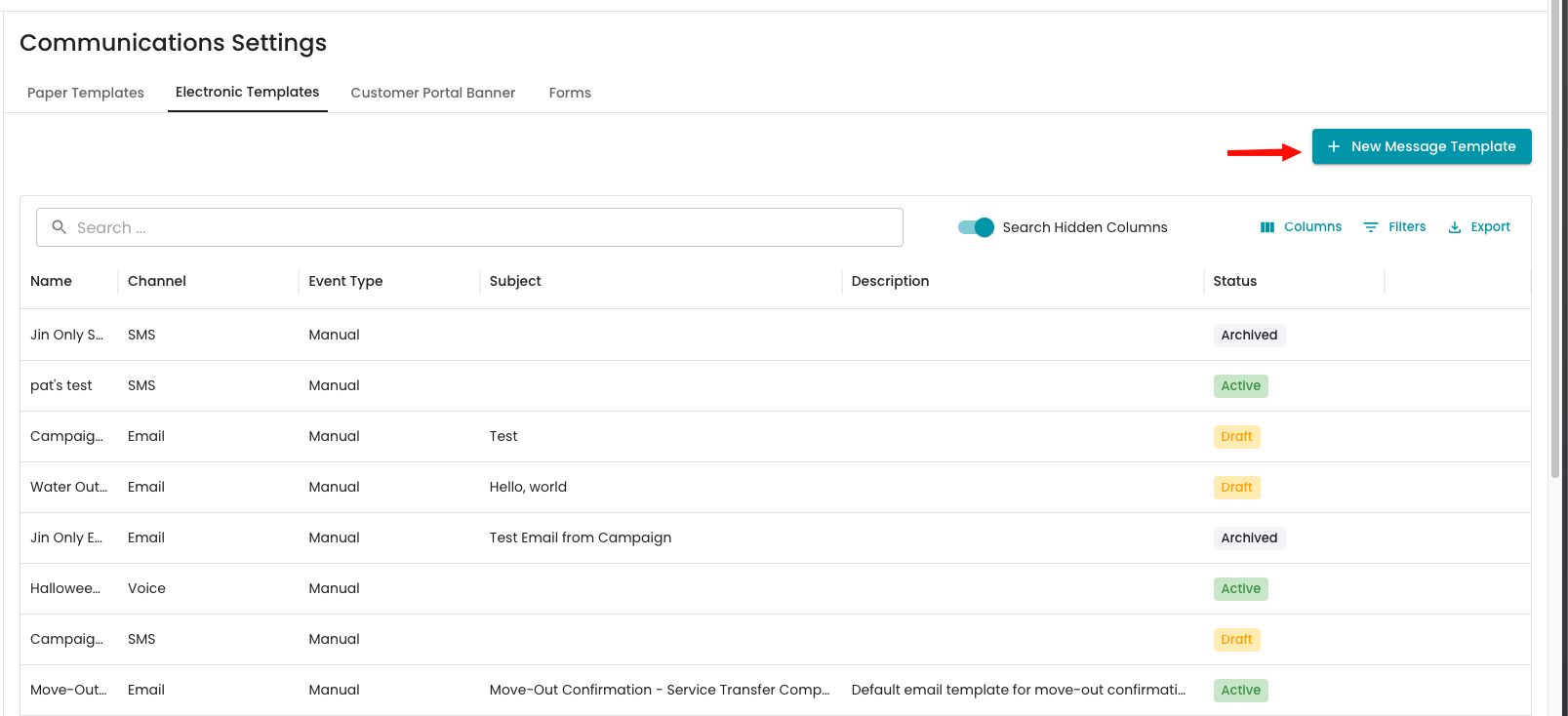
To start a new template, select + New Message Template.
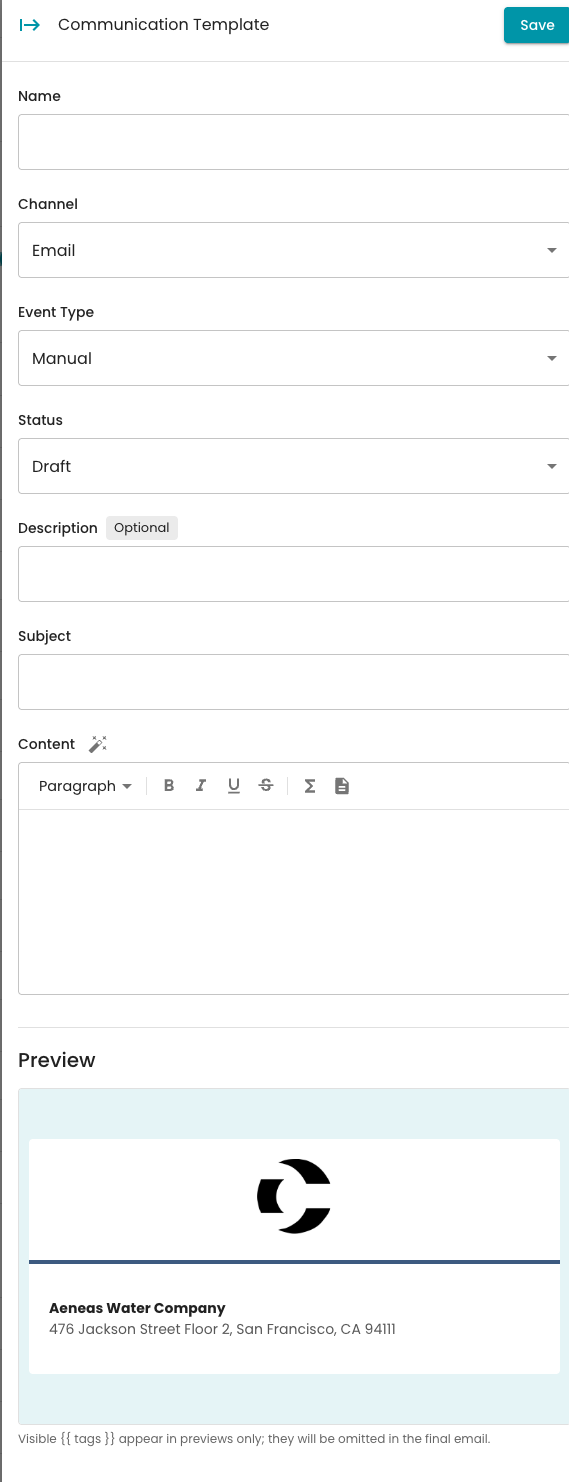
A drawer will appear on the right-hand side so you can build the template and preview what's being added. This communication template works with Voice, SMS, and Email.
Generating a draft with AI
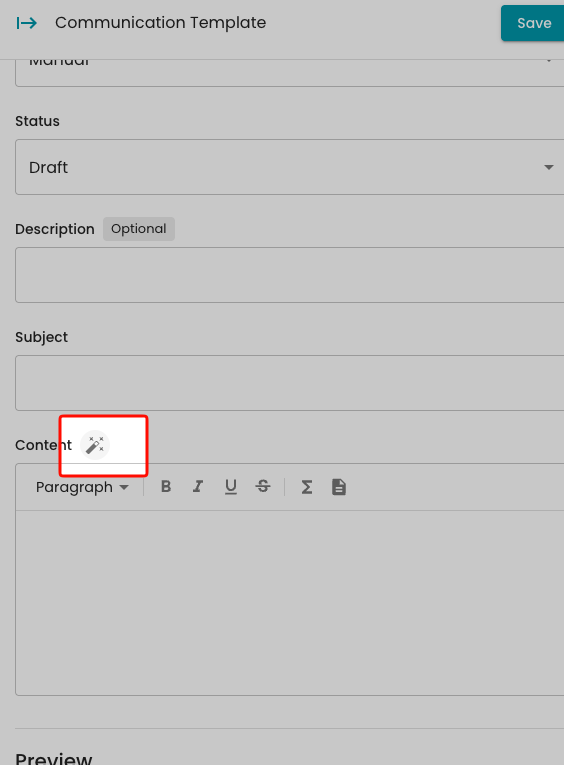
The magic wand icon lets you create a generic template so you can see how it looks.
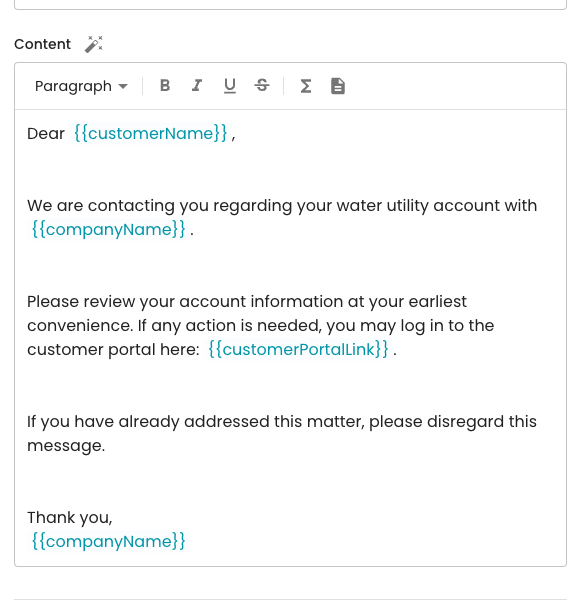
In the Description field, describe what you want to say, and the AI will draft a starting point, including personalization tokens such as the contact name.
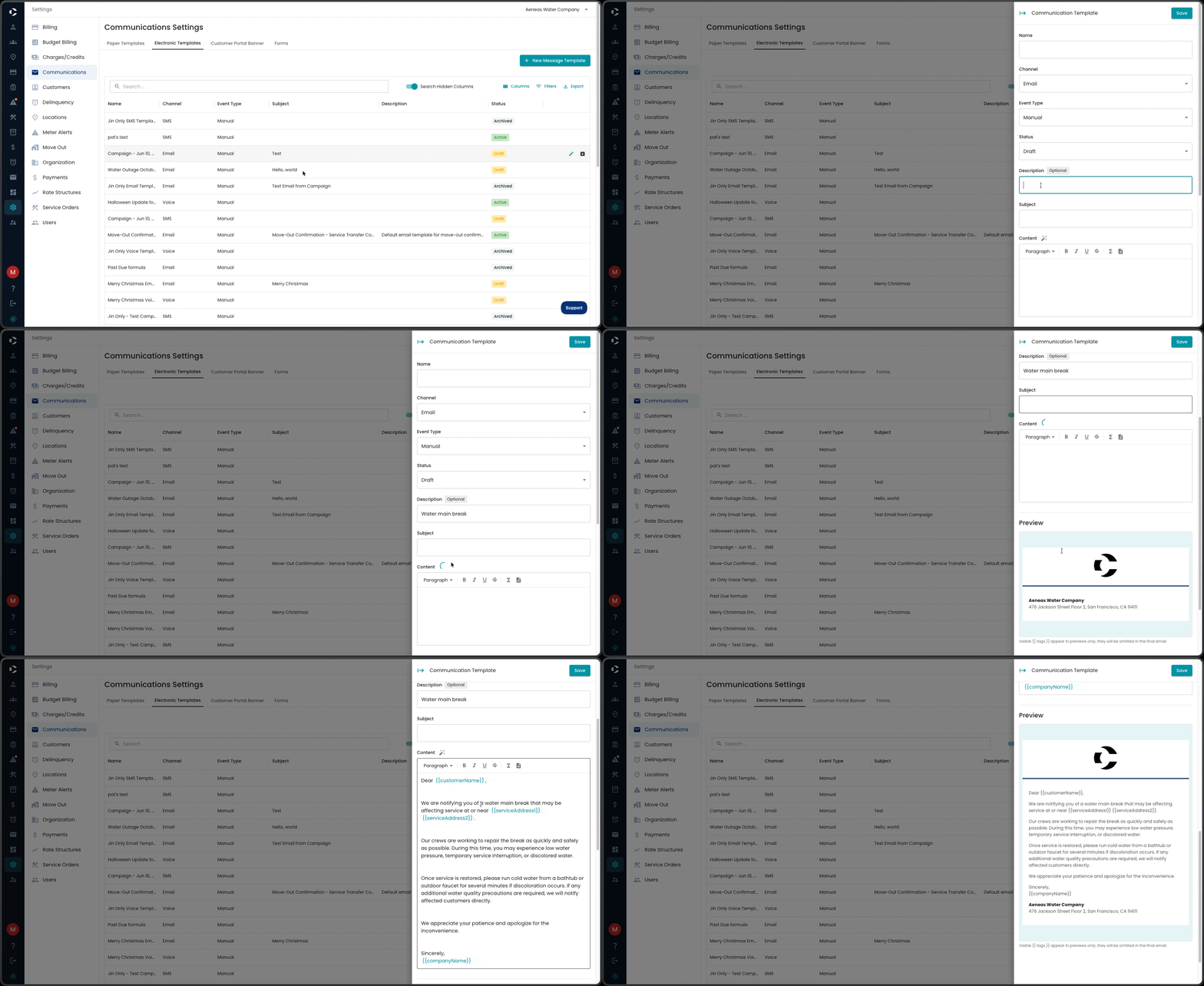
Select Save when everything looks right. The new template will be available to edit on the Electronic Templates page and can be chosen when sending out communications.
Where electronic templates can be selected
- Send Electronic Notices drawer: choose channel, then template.
- Send Email from an account: shared email template selector.
- Send Exception Email during billing: shared email template selector.
- Send Meter Alert Email: shared email template selector.
- Delinquency rule settings: select Email, SMS, and Voice templates.
- Move-out communication settings: select the automatic confirmation email template.
- Service-order configuration: select the completion email template.